KPOP Data Submission Guide
This guide provides a step-by-step explanation of the data submission process on KPOP. KPOP complies with ProteomeXchange (PX) guideline. Before submission, read carefully the PX guideline.
1. Preliminary Step: Registering on KPOP
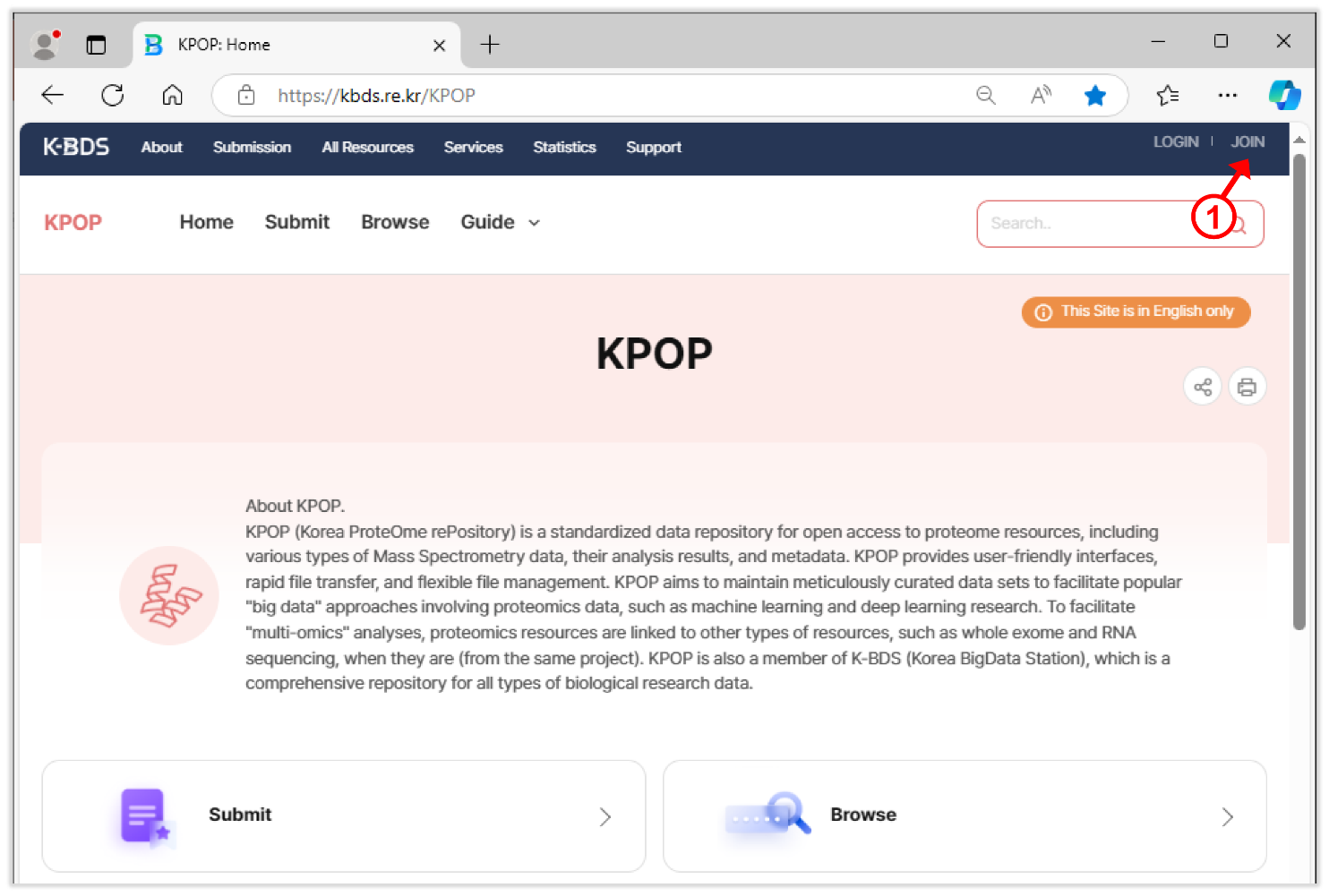
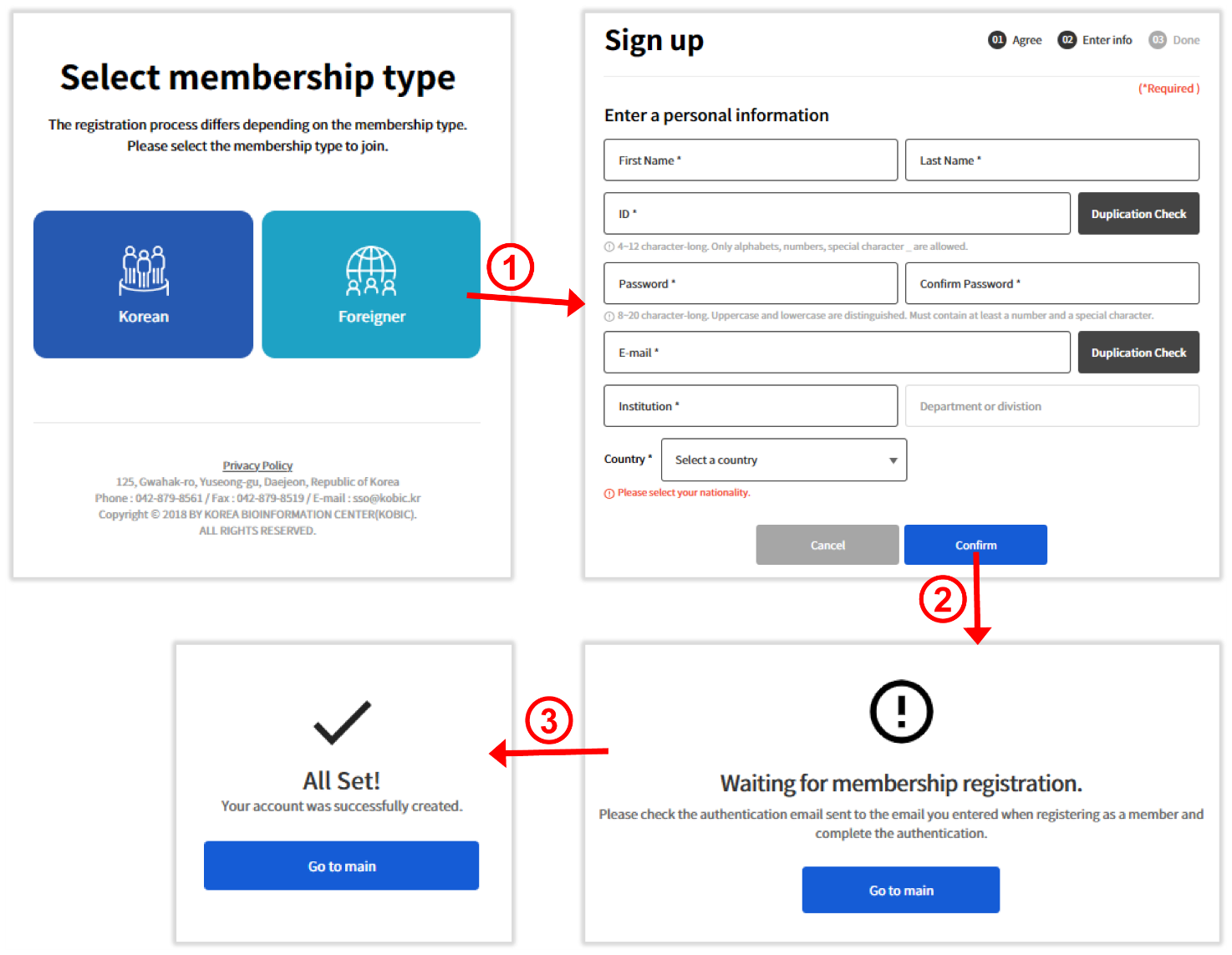
Before submitting data, you need to create a KPOP account. The registration process is straightforward:
- (1) Click the "JOIN" button on the KPOP homepage (Figure 1).
- (2) Enter your details, including username, password, and email address (Figure 2).
- (3) Confirm your email by clicking the verification link sent to your registered email address, and your account will be activated.
2. KPOP System Architecture
The KPOP system enables users to arrange their data sets in a hierarchical structure (Figure 3). A project can contain multiple datasets, each representing different experimental designs, such as biological or technical replicates, or clinical samples.
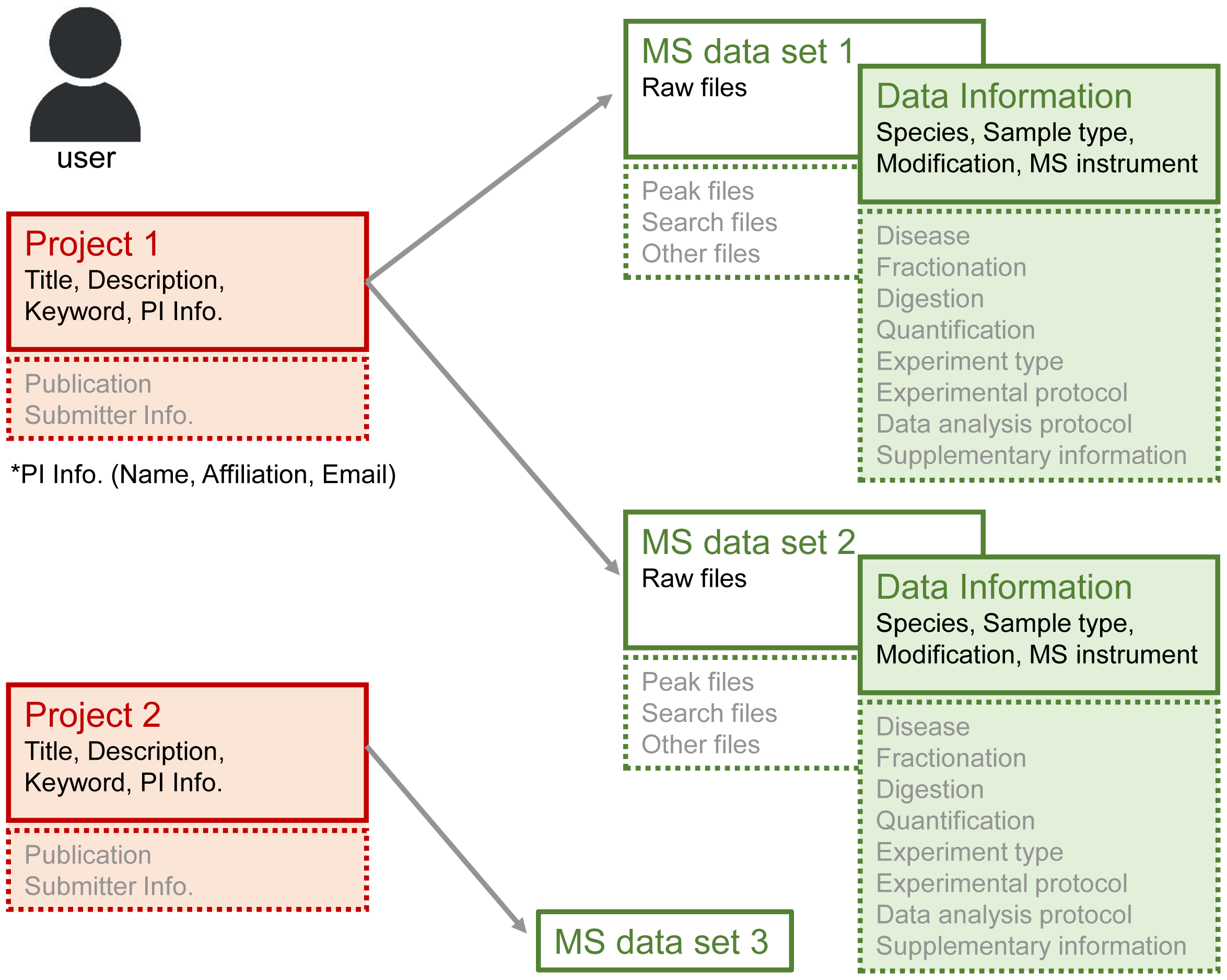
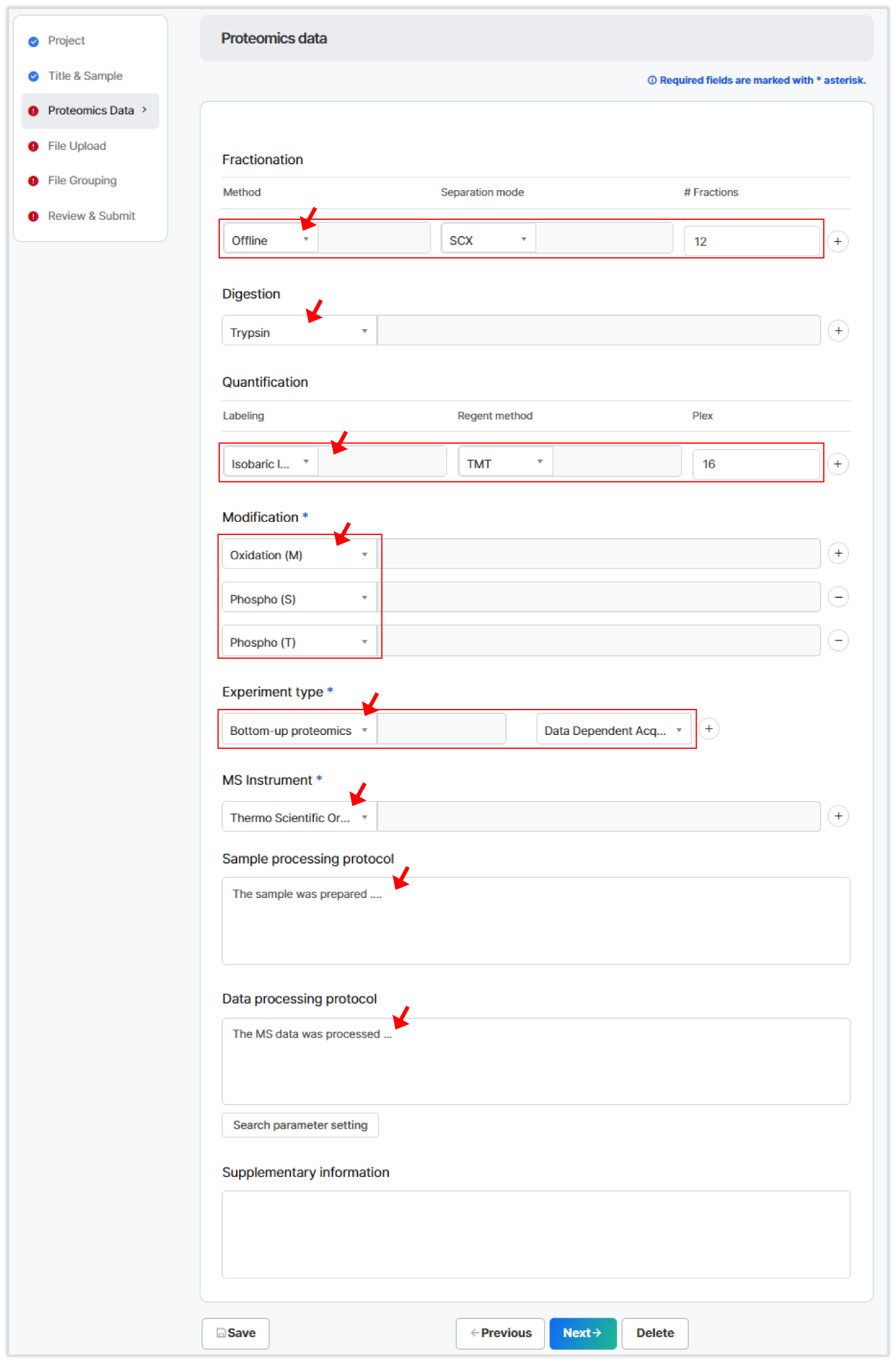
Additionally, you are required to provide metadata during submission, which includes sample information, fractionation, digestion, quantification, modifications, experiment type, and the mass spectrometry (MS) instrument used. This ensures data consistency and reproducibility in future research.
3. Data Submission Process
The KPOP system enables users to arrange their data sets in a hierarchical structure (Figure 3). A project can contain multiple datasets, each representing different experimental designs, such as biological or technical replicates, or clinical samples.
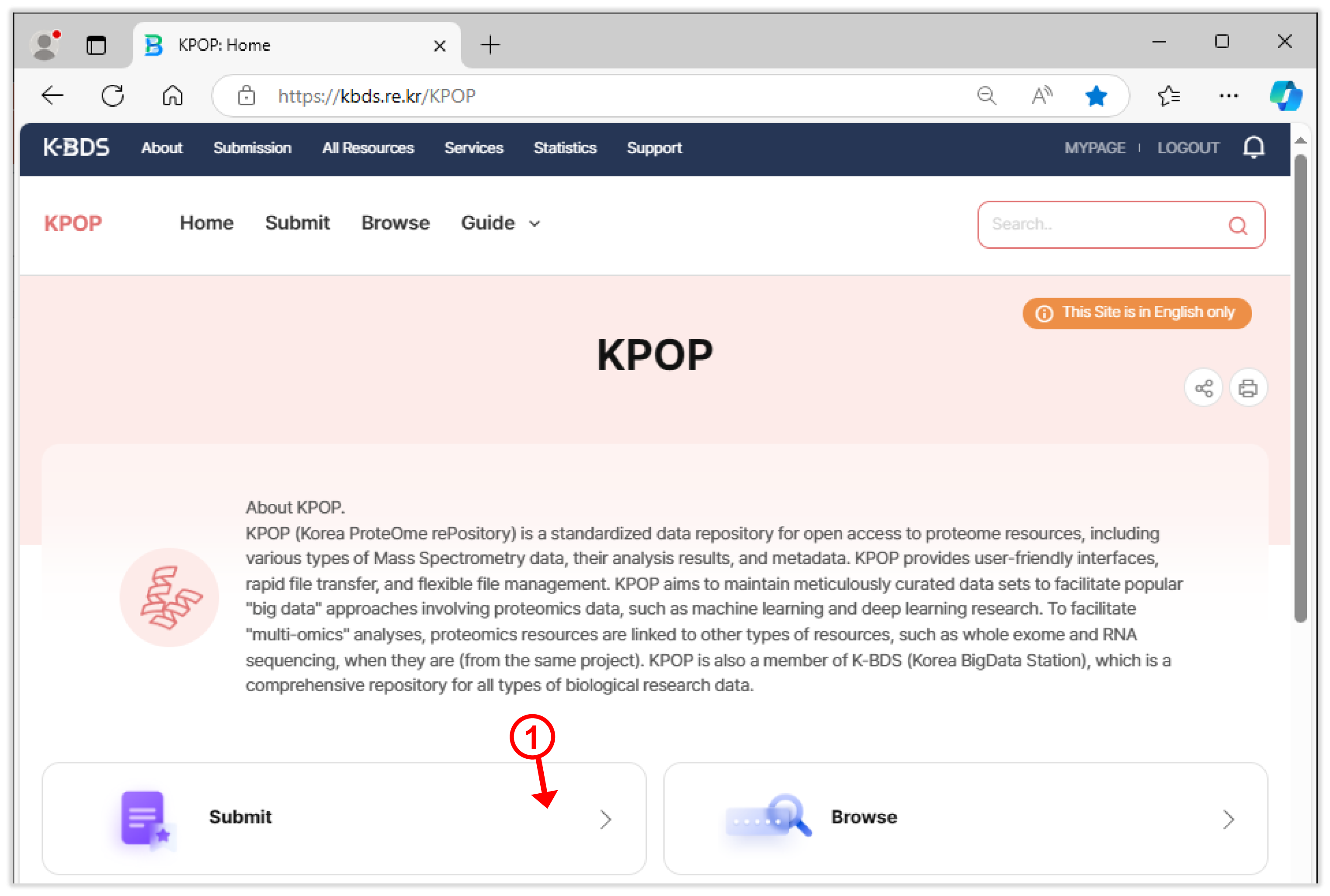
The data submission starts with clicking “Submit” button on the homepage (Figure 4).
Submitting data to KPOP involves the following four step:
- (1) Define a project
- (2) Describe data information
- (3) Upload data files
- (4) Submit
3.1 Tips for entering data
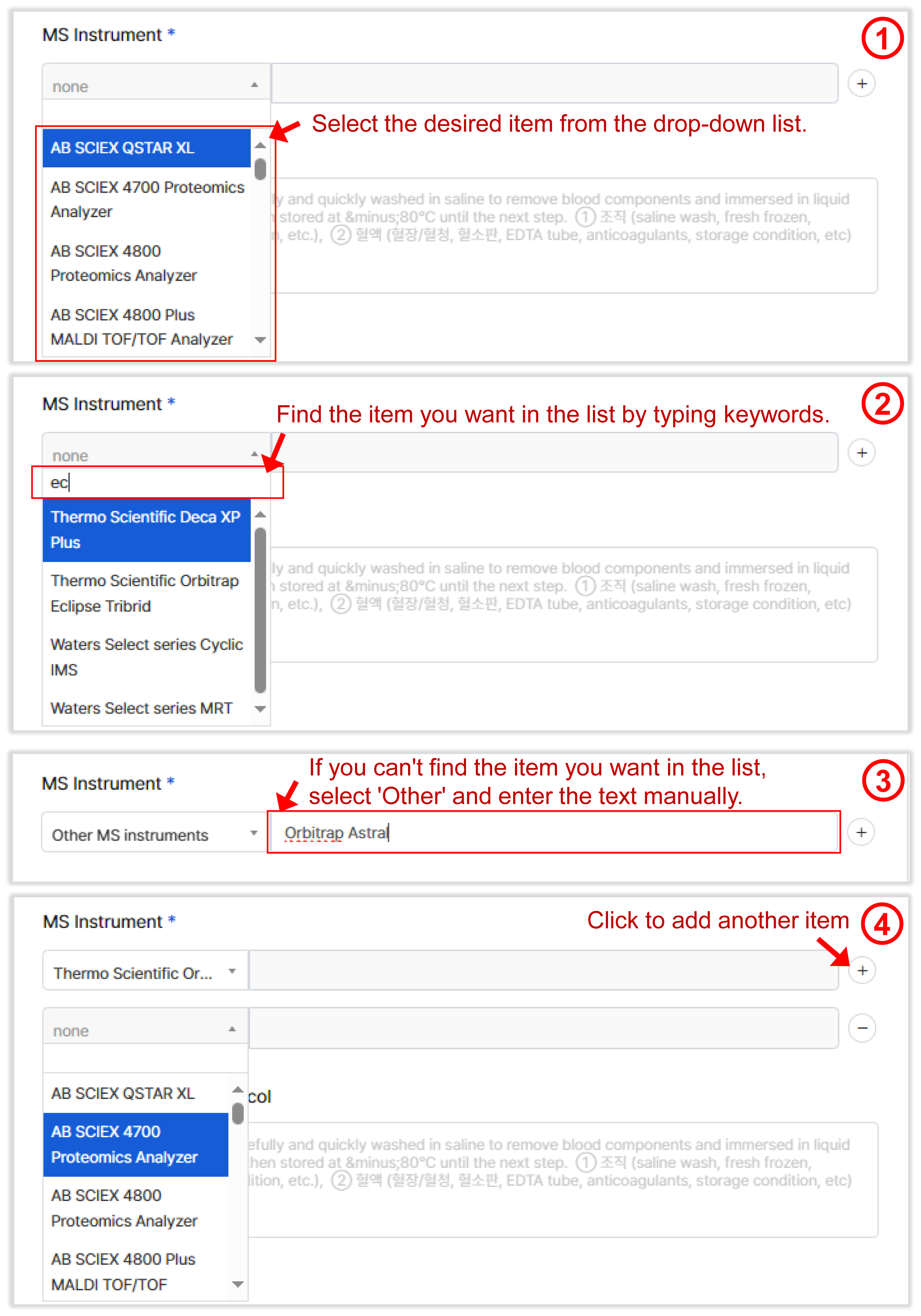
You will be asked to enter some metadata. Here are a few tips (e.g., for MS Instruments in Figure 5): Select the desired item from the drop-down list, or search for it by typing keywords. If the item is not available, choose 'Other' and manually enter the information. To add more items, click ”plus” button.
3.2 Defining a project
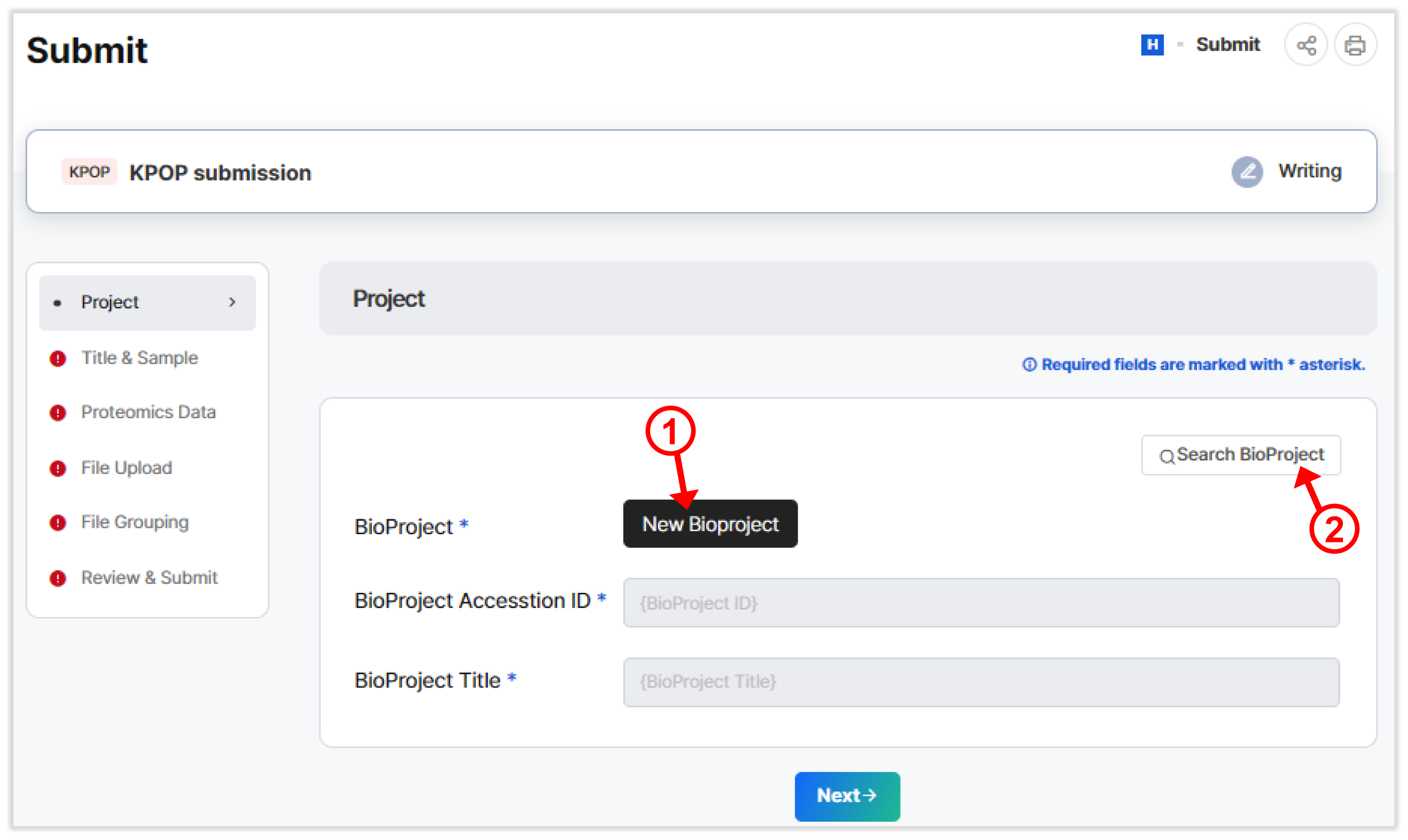
You can either (Figure 6) :
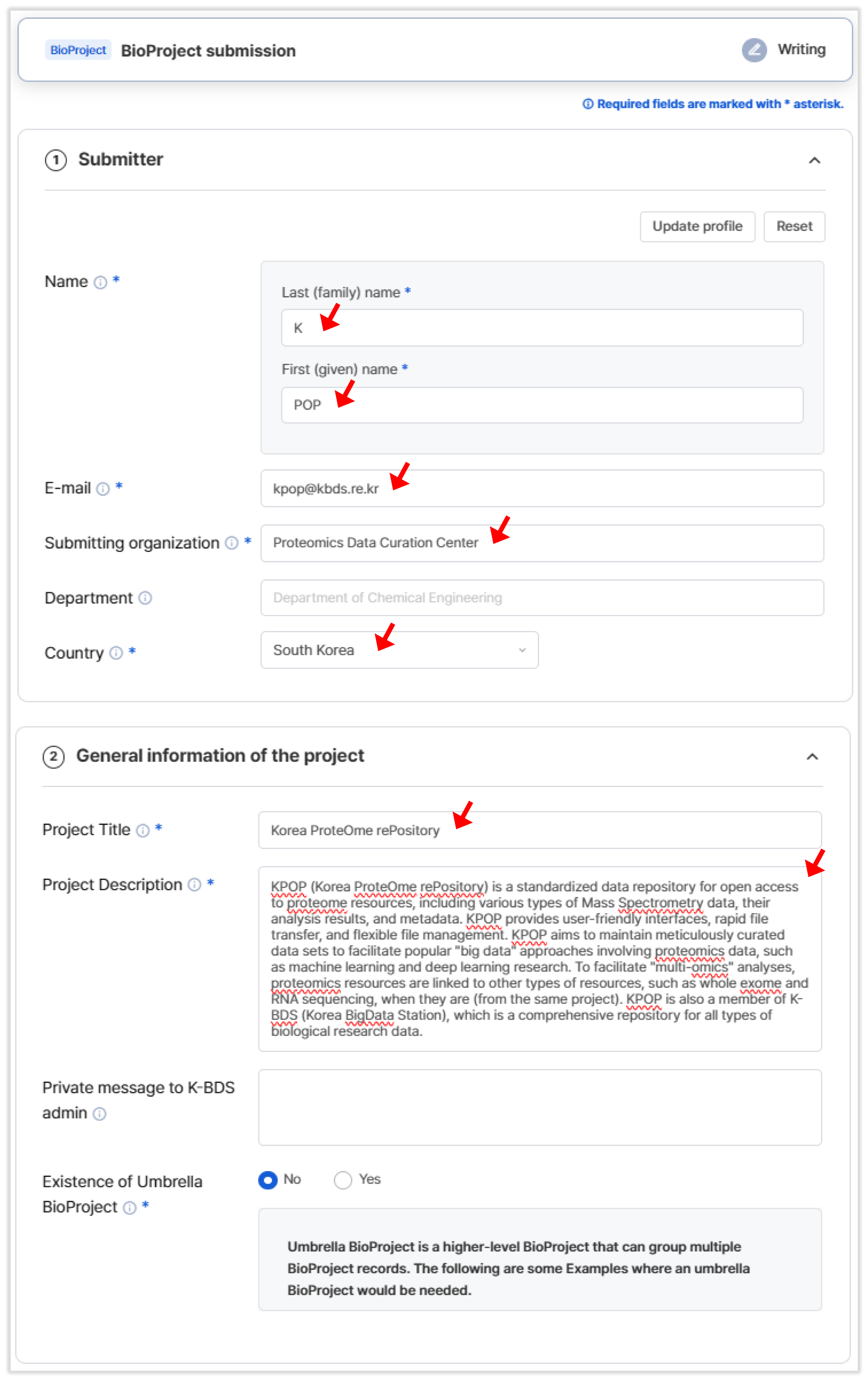
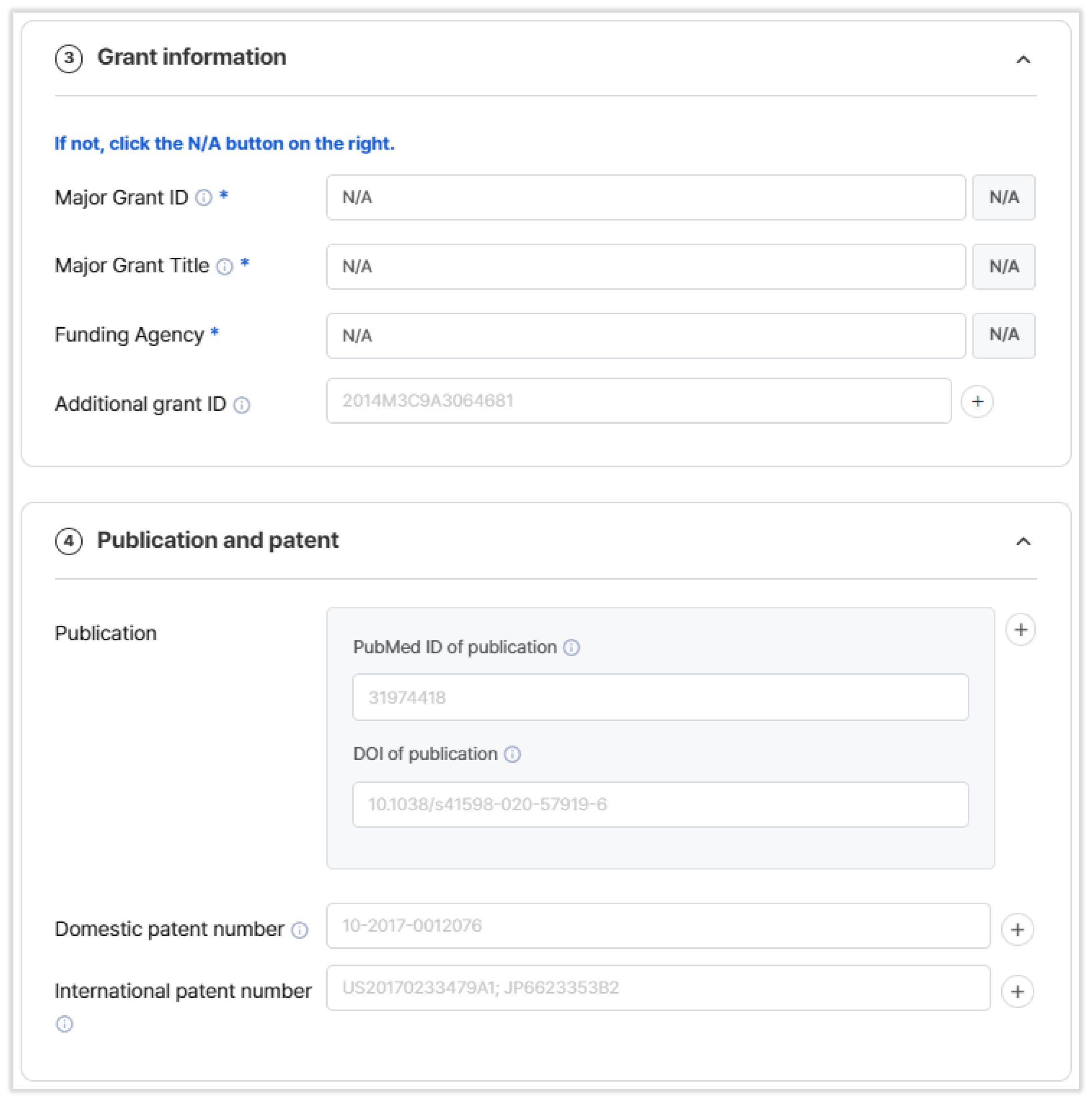
- Create a new project by clicking "New Bioproject" and providing project details (Figure 7).
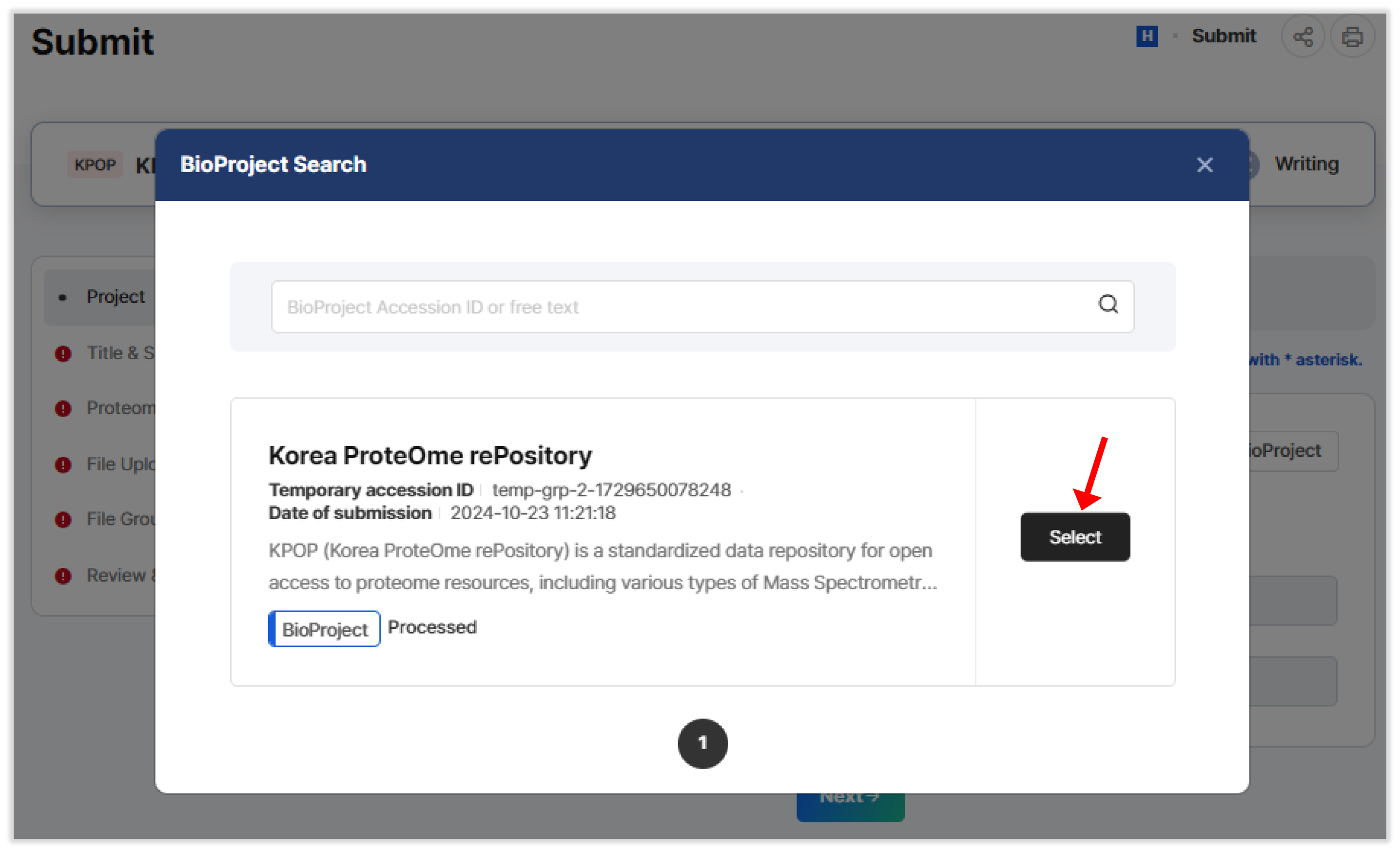
- Choose an existing project by selecting "Search Bioproject" (Figure 8).
If the grant information is provided, you will receive a certificate to prove that the data has been deposited.
3.3 Describing Data Information
In this step, you need to describe the dataset :
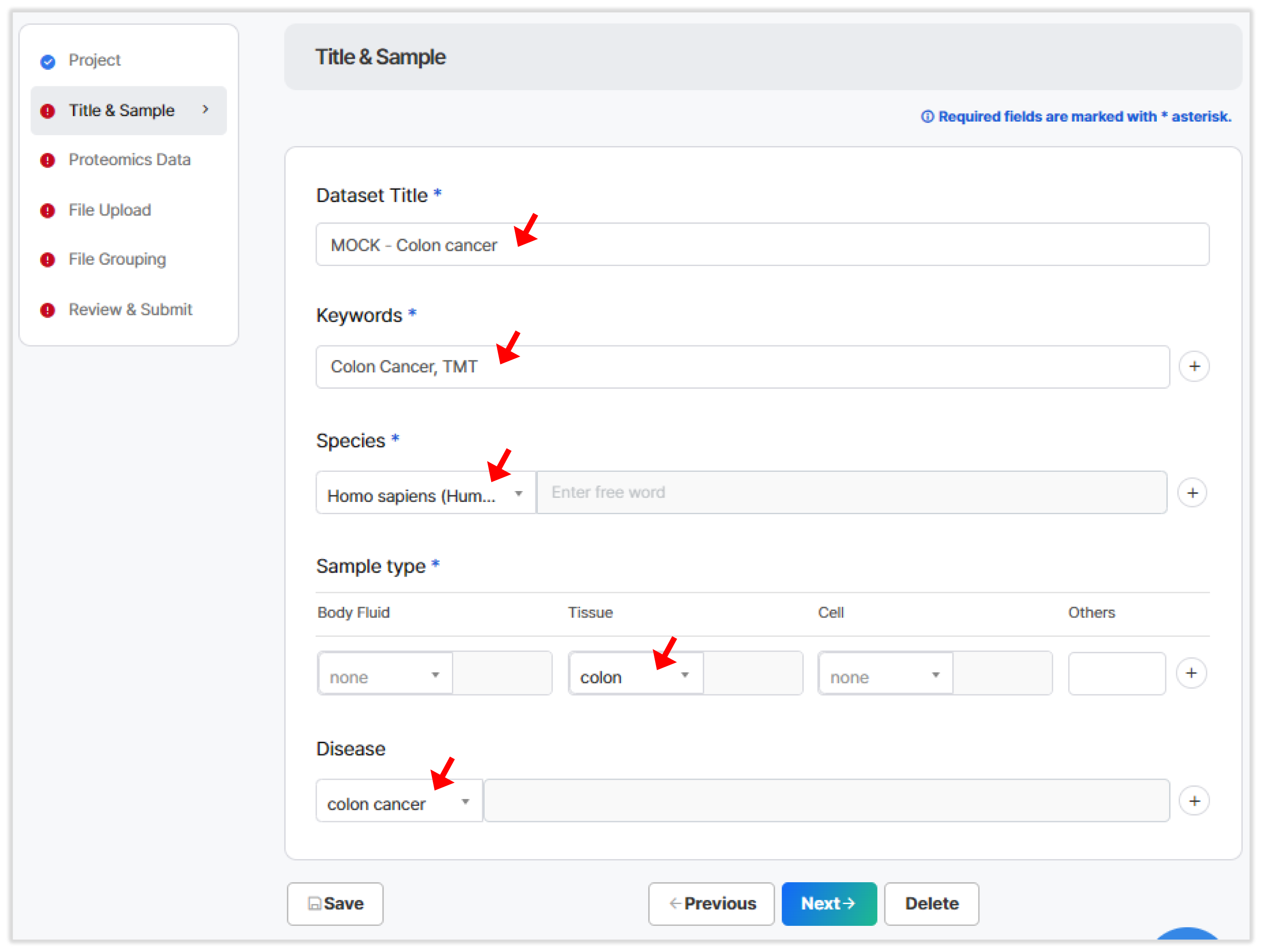
- Title & Sample Information : Provide the title, keywords, species, sample type, and disease information (Figure 9).
- Proteomics Data : Fill out the form with details about your mass spectrometry (MS) experiments (Figure 10).
3.4 Uploading Files
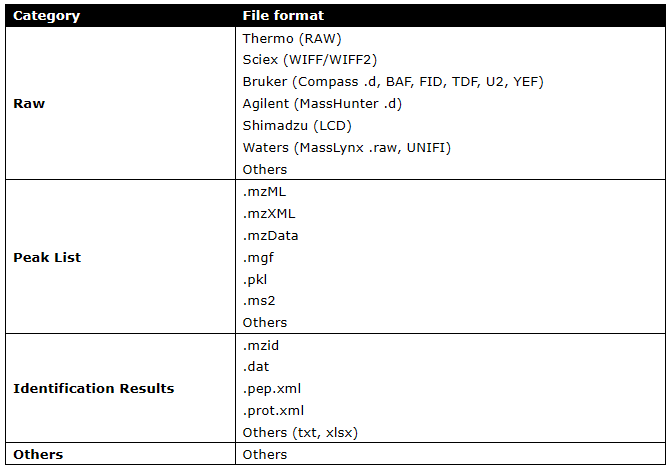
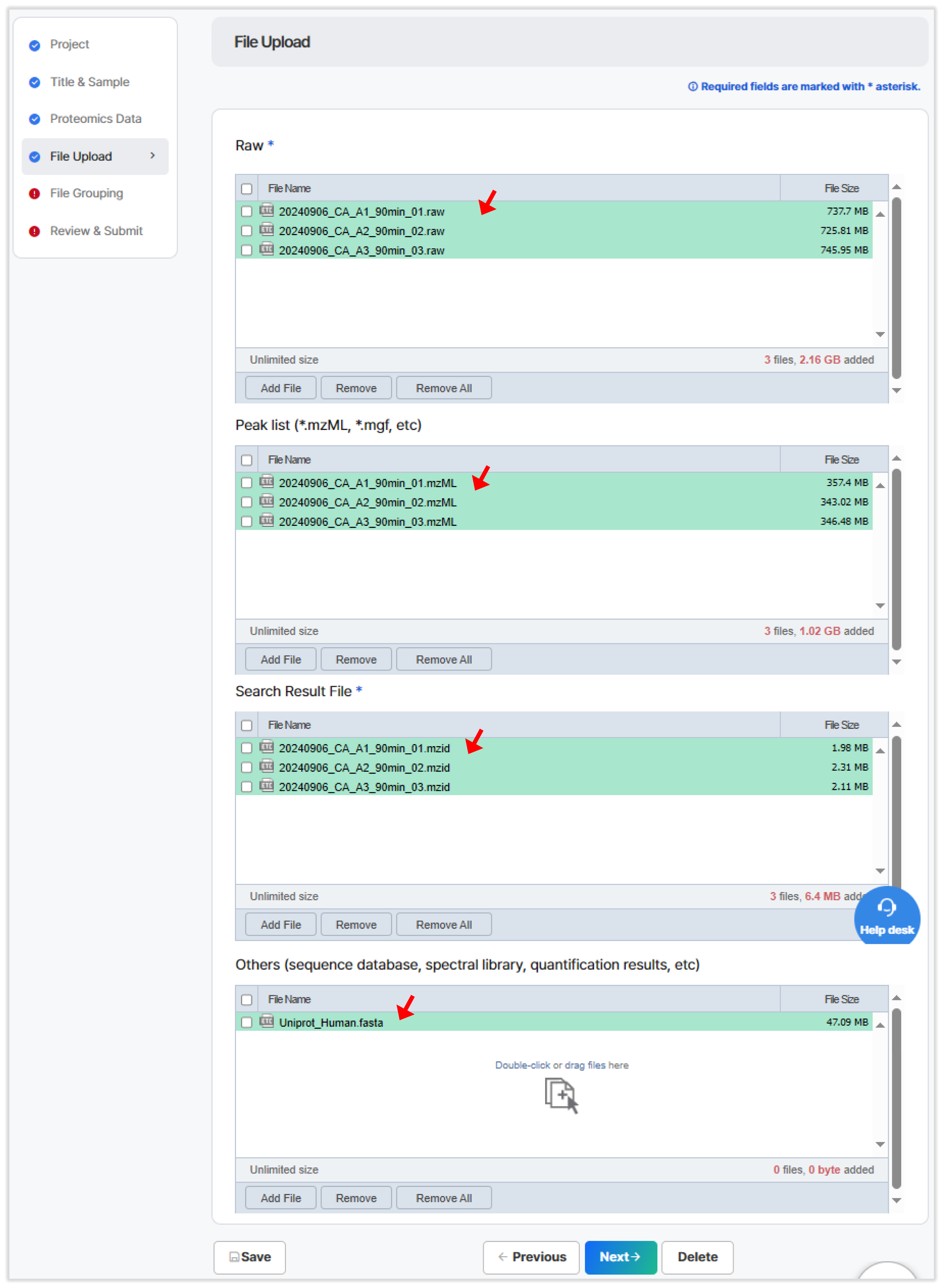
You will upload files in the following four categories (Table 1 and Figure 11) :
- Raw files : Vendor-specific files or non-processed mzML/mzXML files.
- Peak List : Processed peak list files such as mgf, ms2, pkl, etc.
- Identification Results : Files in mzIdentML, mzTab, or other formats.
- Others : Sequence databases, spectral libraries, quantification results, etc.
You can upload files via web browser or using GBOX, a tool that optimizes file transfers (up to 10MB/s) and is available for Windows, Linux, and Mac.
GBOX download : https://www.kobic.re.kr/kobic/analysis/download
3.5 Selecting Submission Type
KPOP supports two submission workflows, Complete or Partial submission. The detailed file types supported by two submission types are listed in Table 2.
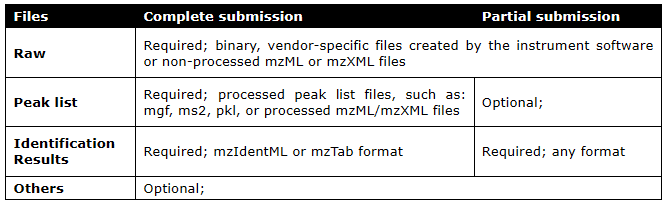
If you want to submit your dataset as a complete submission, you need to upload raw files and the corresponding peak and result files in the “File Upload” Complete "in the” in the "Submission type" section (Figure 12).
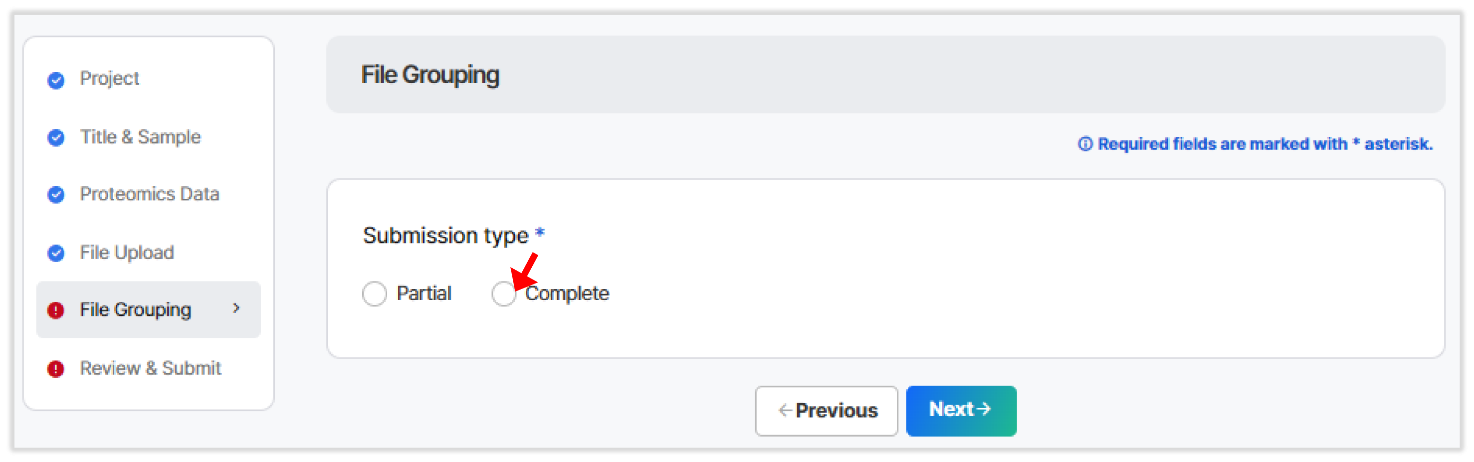
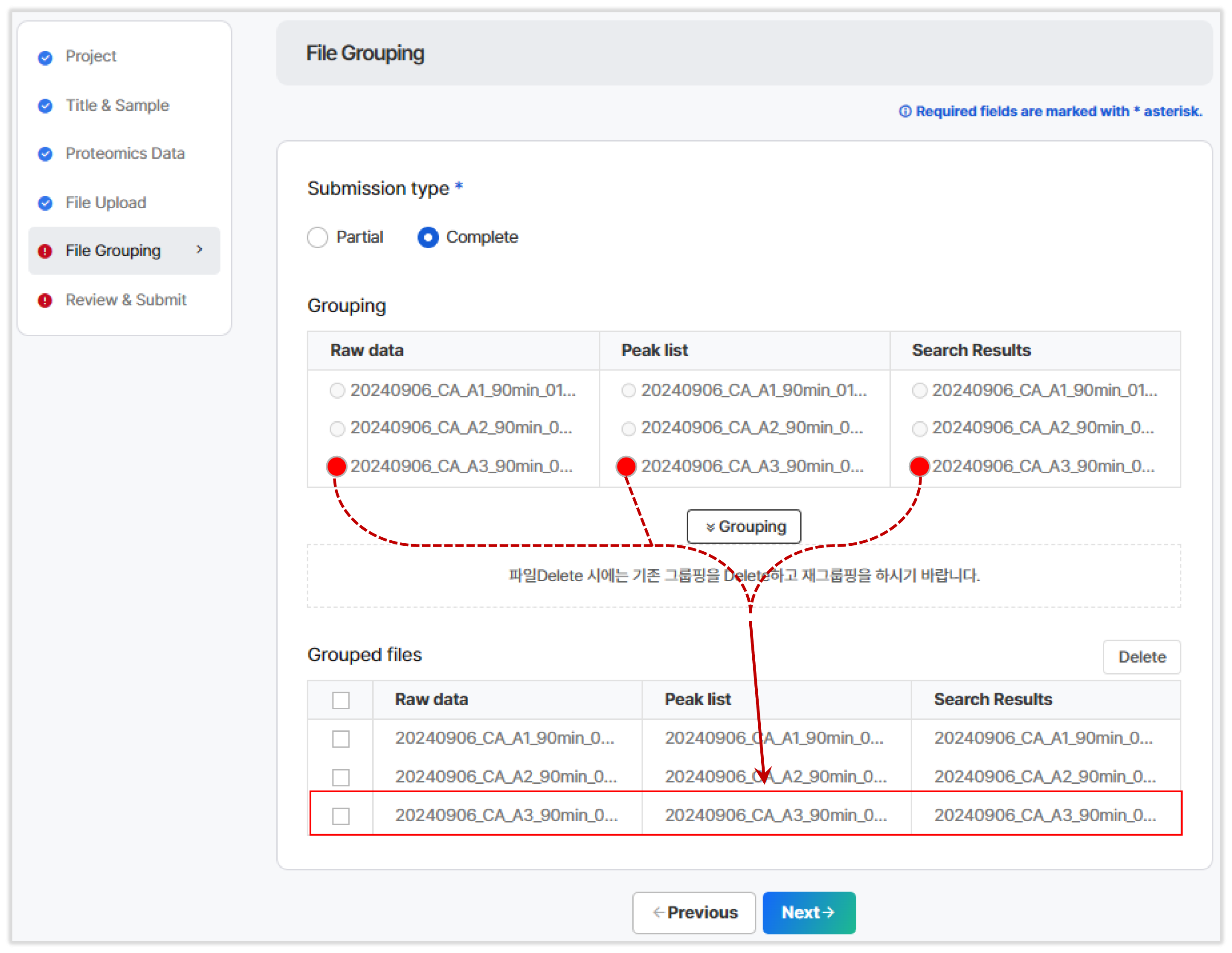
After choosing a submission type, you need to group the related files (raw, peak list, and results). KPOP automatically groups files based on their names, but you can manually adjust the grouping if necessary (Figure 13).
3.6 Finalizing the Submission
To complete the submission :
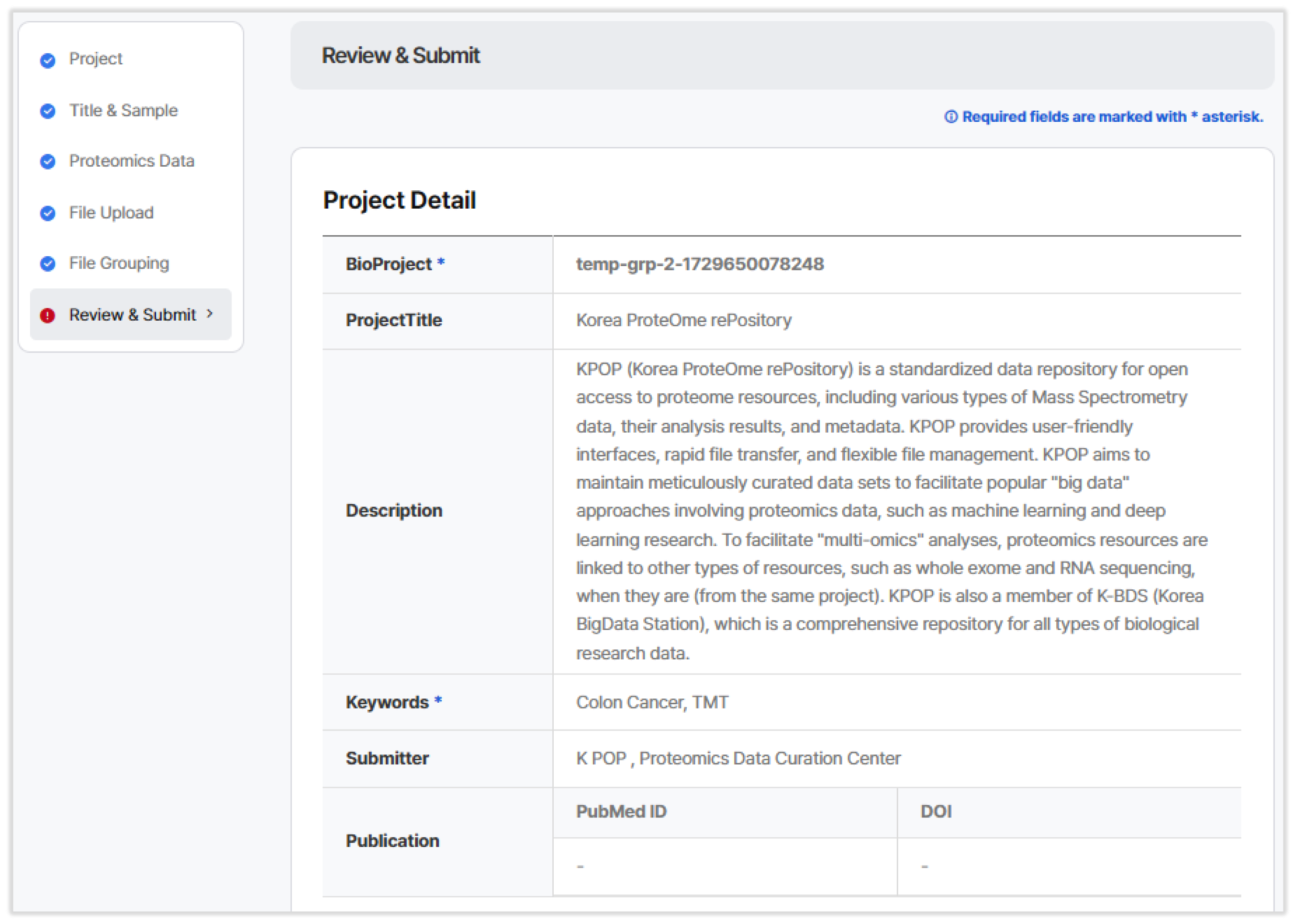
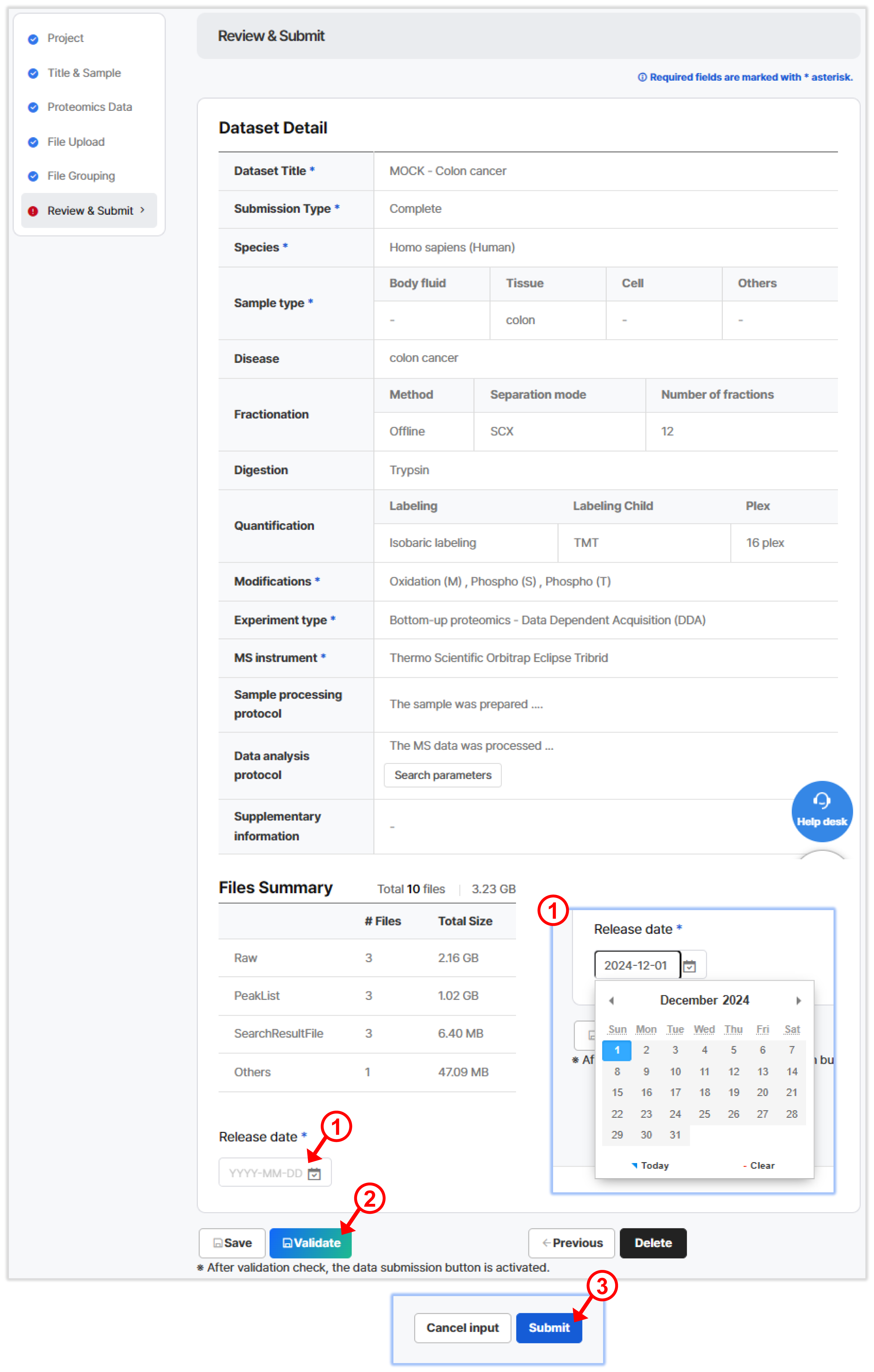
- (1) Review the data and set a release date for when your dataset will be publicly available (Figure 14).
- (2) Click "Validate" to check that all required fields and files meet the submission standards. If there are errors, correct them and revalidate.
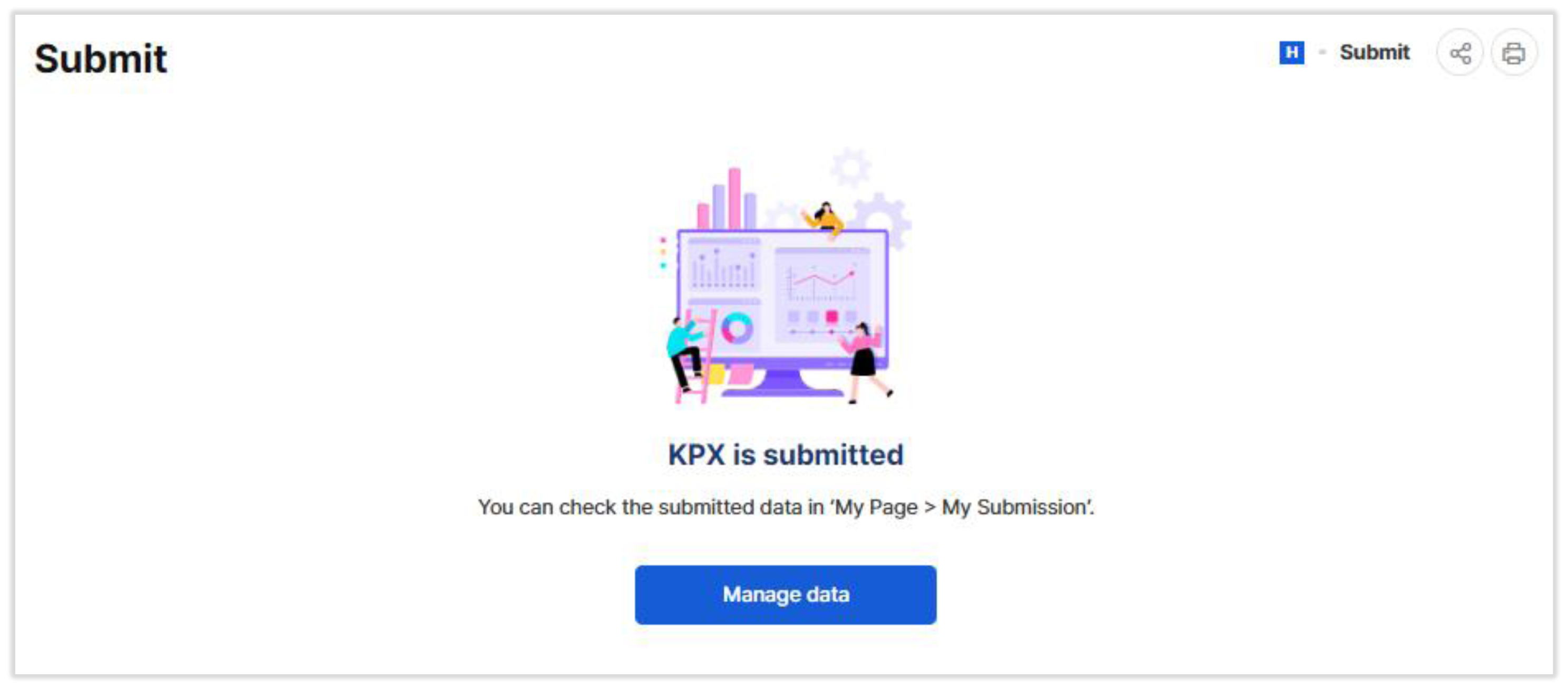
- (3) Once validation is successful, click "Submit", and you will receive a project accession code (Figure 15).
4. Data Sharing Options
KPOP allows you to share your data either in Public or Private mode :
- Public Mode : Your data is openly accessible without the need for login.
- Private Mode : You can share your data with specific users, which is useful for pre-publication collaboration or peer review.
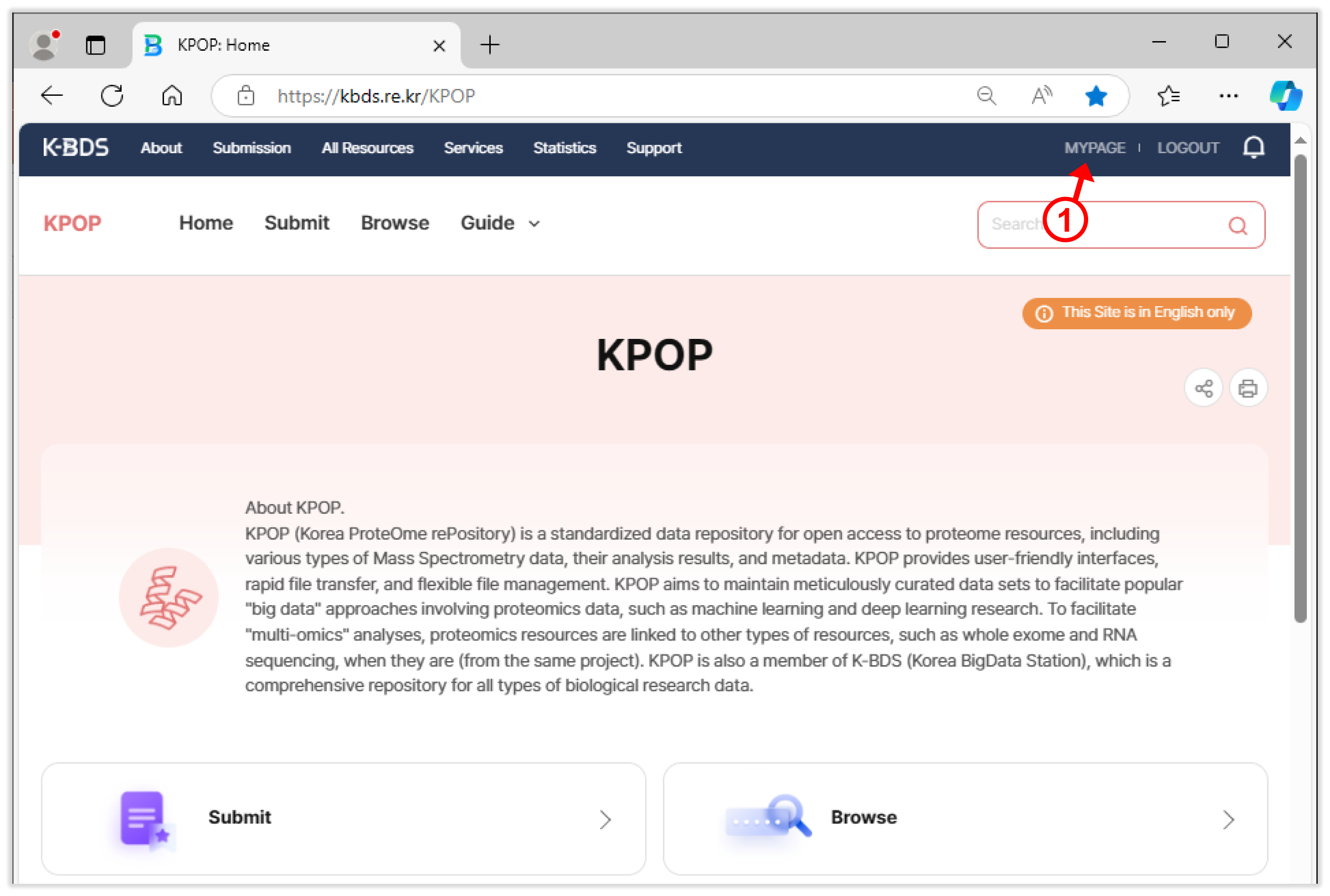
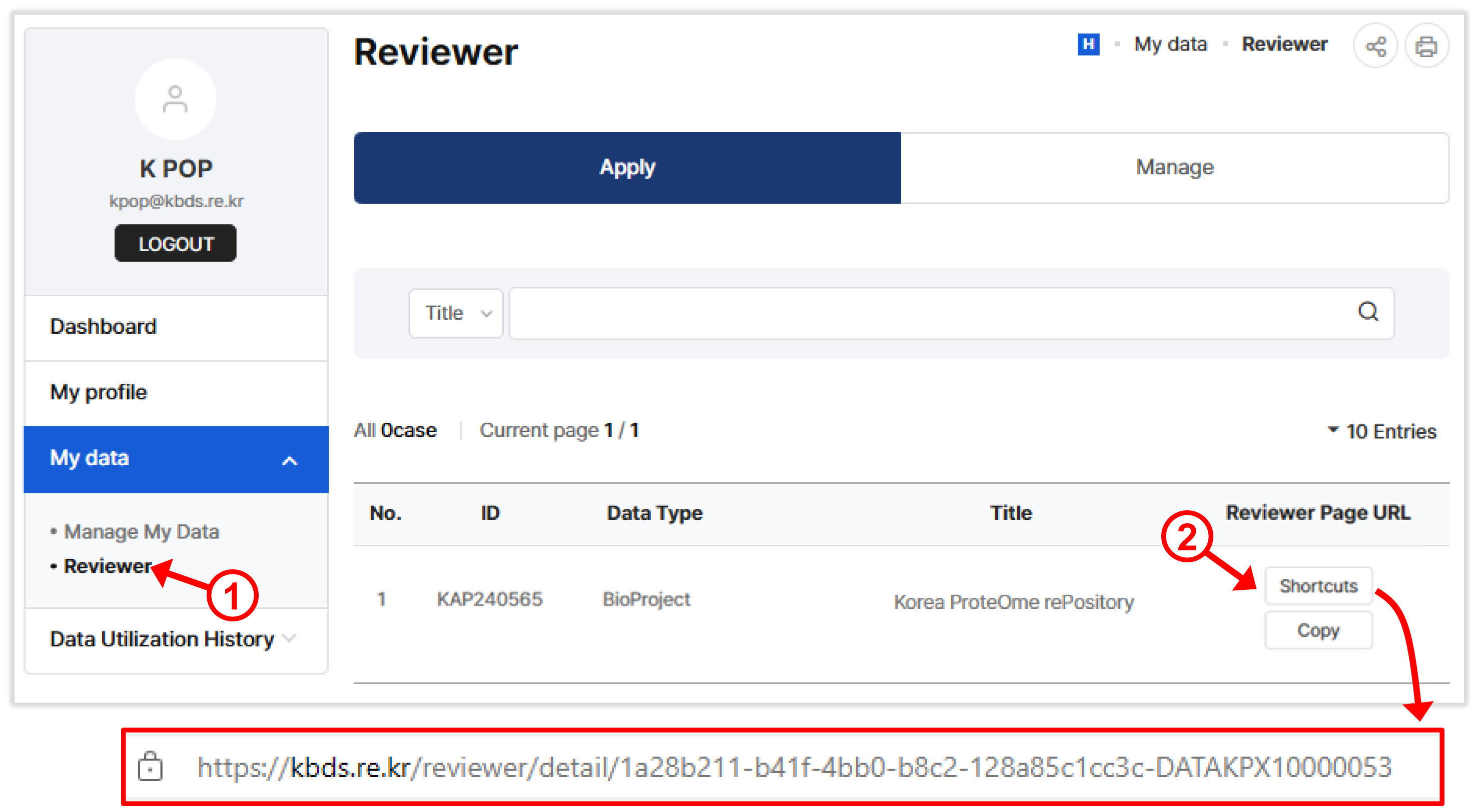
- (1) Go toMY PAGE (Figure 16) and select the Review menu under My Data (Figure 17).
- (2) Choose the dataset you wish to share and click "Shortcuts" to generate a private URL. You can then share this URL with others for easy access.